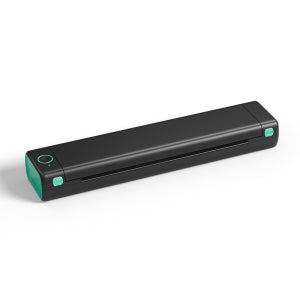
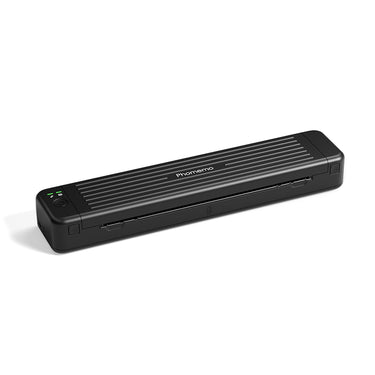
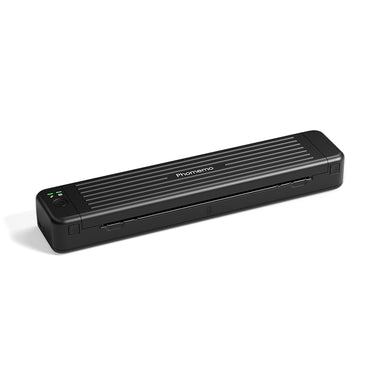
The Phomemo M08F is a portable thermal tattoo stencil printer designed for clean, precise line transfer. Using inkless thermal printing technology, it creates sharp tattoo stencils without smudging or fading. With Bluetooth connectivity, rechargeable power, and a compact body, it supports fast stencil creation from mobile devices or computers—making it suitable for professional tattoo artists as well as beginners learning stencil application.
New Model vs Traditional
Using a thermal tattoo stencil printer like the Phomemo M08F significantly reduces the time and effort needed to prepare tattoo stencils. Instead of manual tracing, which can be time-consuming and skill-dependent, the printer produces clean, consistent stencil lines without ink. This makes stencil creation faster, easier to repeat, and more accessible for both professional tattoo artists and beginners learning tattoo placement.
Capable of various devices
Support systems including iOS, Android, Mac OS, Windows, Chrome OS, Linux.
Portable in multiple situations
Portable Design for On-the-Go Tattoo Work
The Phomemo M08F features a lightweight, compact body that is easy to carry between studios, events, or client locations. Its portable design allows tattoo artists to prepare stencils anytime without bulky equipment, making it suitable for mobile tattoo services, guest spots, and on-site tattoo sessions.
Portable and Professional Tattoo Stencil Experience
The Phomemo M08F thermal tattoo printer is designed to support real-world tattoo workflows, from studio sessions to on-site appointments. Its compact and lightweight design allows artists to easily carry it between workspaces, while maintaining the precision required for professional stencil printing. During use, artists can quickly generate clear tattoo stencils directly from digital designs, helping ensure accurate placement and consistent results. Whether working in a tattoo studio or providing mobile tattoo services, the M08F delivers a reliable, professional stencil experience without sacrificing portability.
Suitable Tattoo Styles
Designed with tattoo artists in mind, the Phomemo M08F-WS captures clean line work and simple shading with precision. It’s the perfect tool for line art, geometric tattoos, minimalist designs, or fine lettering.While not intended for heavy color fills or large dark areas, it guarantees consistent, crisp transfers that make your creative process smoother and more reliable.
Phomemo M08F Tattoo Printer is Suitable for
Please be noted that: Phomemo M08F Tattoo Stencil Printer is notsuitable for: 1. complex lines; 2. color patterns; 3. large-area dark patterns; Only applicable to: 1. simple lines; 2. black, or monochrome patterns; 3. clear line patterns
How to Use M08F Tattoo Printer
Step 1
Remove the transparent sheet, and tear out the yellow page.
Step 2
Download the app and connect to M08F-A4 via Bluetooth for phones, or via USB cable for Computer.
Step 3
1. Press and hold for 2 seconds to power on.
2. Place the white page face up and the ribbon page faces down and flush against the printer.
Step 4
Cut out the pattern and paint the arms with stencil ointment for a better transfer. Alcohol can wipe away tattoo transfer marks.
How to Use M08F Tattoo Printer
Step 1 Power on the Printer
1. Press and hold the power button for 2 seconds to turn on the printer.
2. Press both side buttons to open the printer cover.
Step 2 Prepare the Tattoo Transfer Paper
1. Remove the second transparent protective paper
2. Tear off the yellow sheet completely.
Step 3 Feed the tattoo transfer paper
1. Place the tattoo transfer paper with the white side facing up and the purple carbon side facing down, ensuring it’s aligned against the printer feed. 2. Close the printer cover securely.
Step 4-1 Print Via PC
1. Download the M08F-WS driver for PC from Phomemo drivers (Portable Printer > M08F > Drivers). 2. Connect your PC to the printer using a USB cable; M08F-WS will appear under Devices and Printers.
3. When printing tattoo stencils from software like Microsoft Office, Photos, or Chrome, select M08F-WS as the printer.
Step 4-2 Print Via Mobile Device
1. Search for Phomemo in the App Store or Google Play, then download and install the Phomemo App. 2. Connect to M08F-WS via Bluetooth in the app’s device list.
3. Create or import your tattoo design or use a template in the app, and print directly with editing options.
Step 5 Transfer the Tattoo
1. Cut out the printed tattoo pattern and carefully peel off the purple layer.
2. Apply stencil ointment evenly on the skin or practice skin to improve transfer quality.
3. Press and transfer the tattoo stencil onto the prepared area.
Use alcohol to remove unwanted tattoo transfer marks.
Product Size(mm)
Paper Size(mm)
Weight(g)
Power Supply
Support PC Version
Printing Speed(mm/s)
Battery Capacity(mAh)
DPI
M08F-Tattoo
310*68*41mmLetter715gLithium Battery√13-15mm/s
1200mAh
203DPI
TP31
145*70*54mm80mm450gLithium Battery×10-15mm/s
2200mAh👍
203DPI
TP81
310*67*40mmLetter715gLithium Battery√10-15mm/s
1200mAh
203DPI
TP83
310*67*40mmLetter715gLithium Battery√10-15mm/s
1200mAh
203DPI
TP87
310*67*40mmLetter715gLithium Battery√10-15mm/s
1200mAh
203DPI
M08F-Tattoo
TP31
TP81
TP83
TP87
Product Size(mm)
Paper Size(mm)
Weight(g)
Power Supply
Support PC Version
Printing Speed(mm/s)
Battery Capacity(mAh)
DPI
310*68*41mm
Letter
715g
Lithium Battery
√
13-15mm/s
1200mAh
203DPI
145*70*54mm
80mm
450g
Lithium Battery
×
10-15mm/s
2200mAh👍
203DPI
310*67*40mm
Letter
715g
Lithium Battery
√
10-15mm/s
1200mAh
203DPI
310*67*40mm
Letter
715g
Lithium Battery
√
10-15mm/s
1200mAh
203DPI
310*67*40mm
Letter
715g
Lithium Battery
√
10-15mm/s
1200mAh
203DPI
Liquid error (sections/pagefly-section line 6): Could not find asset snippets/pf-ccaccf1d.liquid
FAQs
Frequently Asked Questions
Is the Phomemo M08F suitable for professional tattoo artists?
Yes. The Phomemo M08F is designed for professional tattoo artists who need consistent stencil quality in studios,
guest spots, and mobile tattoo sessions. It delivers clean, sharp stencil lines suitable for detailed tattoo work.
What devices can I use with the M08F tattoo printer?
The M08F works with iOS, Android, Windows, and macOS devices. Tattoo artists can easily print stencils directly
from smartphones, tablets, or laptops using Bluetooth or USB connections.
Can the M08F handle fine line and detailed tattoo designs?
Yes. With high-resolution thermal printing, the M08F accurately reproduces fine lines, small text, and detailed
tattoo artwork, making it ideal for realism, linework, and lettering styles.
What type of tattoo stencil paper should I use?
The M08F is compatible with standard thermal tattoo transfer paper commonly used in professional tattoo studios. No
ink or toner is required.
Is the M08F tattoo printer portable for guest spots or conventions?
Yes. Its lightweight and compact design makes the M08F easy to carry for conventions, guest tattoo sessions, and
on-site work.
Does the M08F require ink or cartridges?
No. The M08F uses direct thermal printing technology, so there is no need for ink, ribbons, or cartridges.
How reliable are the stencils for long tattoo sessions?
When printed on quality thermal transfer paper, M08F stencils remain clear and stable throughout extended tattoo
sessions.
1. Make sure all permissions are allowed when installing the app. You can open them in your phone's Settings. 2. If you can't find your portable printer model on the Bluetooth connection page, please turn on the printer, double-click the power button to print out the QR code, and then scan the code to connect in the app.
1. Make sure that the power socket is charged, and the charging cable and the charging head with an output voltage of 5V-2A can work normally.Use other electrical devices to see if the power socket, the charging cable and charging head can work normally. 2. Reconfirm that the output voltage of the charging head in use is 5V-2A. Fast chargers with output voltage exceeding 5V may damage the printer. 3. If the printer still can't charge, try to replace another 5V-2A charging cable and charging head. After charging for half an hour, check if it can be turned on. 4. While charging, try to poke the small hole next to the charging port with a paper clip or a similar tool. Restart the printer after charging for half an hour to see if it works properly.
1. Make sure you are using thermal paper. 2. Make sure the front and back of the thermal paper are not misplaced. (For non-adhesive paper, the side with a black line after scratching with your fingernail should face down.) 3. Double-click the power button to print the QR code. 4. If the print head is jammed, try to press hard to see if it springs back.Here's the TUTORIAL that may help you.
1. Insufficient battery power can affect printing quality. Please check the battery level of the printer. If it is below 30%, please charge it for 2-3 hours before printing.Turn on the printer and double-click the power button to print the self-test page to check the printer’s battery level. 2. Adjust the print density in the app.Click on “Print” and adjust the print density in the print preview. 3. Clean the print head.Use alcohol wipes to clean the cutting section of the printer, especially where there are black lines, to make sure there is no adhesive residue or foreign objects on the print head. 4. The quality of image printing depends on the original image. If your original image is not clear enough, please try printing different images and then check the printing quality.
Please follow the instructions below: 1. First, open the printer without inserting any paper. 2. Next, press and hold the power button for 10-20 seconds until the indicator light flashes twice, then release the power button to finish the process. 3. Finally, long press the power button to turn on the printer and then reload the paper to print. Video about how to place the tattoo paper properly.
Please download the latest driver from the official website. Please download the appropriate driver according to your operating system version and follow the instructions video to install the driver: Download for Phomemo Portable Printer
Make sure the printer is turned on and remains on before connecting to the computer.Please connect the printer directly to the computer without using a converter.If the problem persists, please try the following steps. 1. Try to unplug and re-plug the USB cable. 2. If your computer has two USB ports, try to switch the other port. 3. Try to connect using a different USB cable.
Regardless of the operating system, first check if the printer is turned on and is connected correctly.
Make sure the printer is turned on and remains on before connecting to the computer. Please connect the printer directly to the computer without using a converter.If the problem persists, please try the following steps. 1. Try to unplug and re-plug the USB cable. 2. If your computer has two USB ports, try to switch the other port. 3. Try to connect using a different USB cable.
1. Make sure the tattoo paper is installed correctly. Pull the tattoo paper to the correct position and close the printer top cover.The website HERE shows how to place the tattoo paper properly. 2. If the tattoo paper is installed correctly, double-click the power button to print out the QR code and check if the printer can work normally. 3. Make sure the printer has sufficient battery power. If it falls below 20%, charge it for about 2 hours before starting it again. 4. Use thermal paper instead of tattoo paper for printing and check if the printer works normally. If the above steps do not solve the problem, please provide us with the printer’s serial number (SN) and firmware version. It can be solved by upgrading the firmware to V1.2.1.
Regular black lines or black blocks indicates that the print head is damaged. Please replace the printer. 1. Try to clean the print head. Use alcohol wipes to clean the cutting section of the printer, especially where the black lines are, to make sure there is no dirt. 2. Try to double-click the power button to print the QR code.
New Model vs Traditional
Capable of various devices
No Matter You're Officer or Tattoo Artist
Phomemo M08F Tattoo Printer is Suitable for
Please be noted that:
Phomemo M08F Tattoo Stencil Printer is not suitable for: 1. complex lines; 2. color patterns; 3. large-area dark patterns;
Only applicable to: 1. simple lines; 2. black, or monochrome patterns; 3. clear line patterns
How to Use M08F Tattoo Printer
Step 1
Remove the transparent sheet, and tear out the yellow page.
Step 2
Download the app and connect to M08F-A4 via Bluetooth for phones, or via USB cable for Computer.
Step 3
1. Press and hold for 2 seconds to power on.
2. Place the white page face up and the ribbon page faces down and flush against the printer.
Step 4
Cut out the pattern and paint the arms with stencil ointment for a better transfer. Alcohol can wipe away tattoo transfer marks.
We use cookies to ensure the best experience on our website and assist with our marketing efforts. By
continuing to browse, you agree to our cookie policy.