Issue
|
Problem
|
Reason
|
Solution
|
Print Quality Issues
|
My print is poor quality?
|
(5)Cover is not completely closed
|
Firmly press the Cover to confirm that it has been completely closed
|
(1)Poor quality of label paper
|
The darkness of the label depends on the label manufacturer. High quality labels produce darker prints.
|
(2)Margins and paper size
|
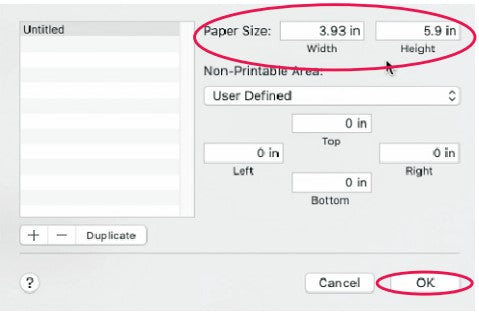
Please make sure the label size is correct before printing. If the content exceeds the label size, the printer may "shrink" the size to a smaller size resulting in faded content.
NOTE: If you are printing 4 x 6 inches labels, the sample 4 x 6 inches label from Phomemo website should take up the full width and height of your label.
|
(3)Print density and speed
|
Follow FAQ's steps from Phomemo website to adjust print density and speed on computer. NOTE: Setting the density too high may cause some unwanted dark lines and/or the label getting too hot and sticking to the Printhead.
|
(4)Dust or adhesive on the printhead
|
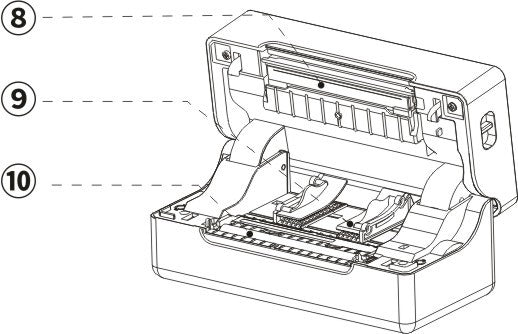
Turn off printer. Open the Cover and use the alcohol pads to wipe the Printhead and Platen Roller clean. (Any 70% Alcohol pad would work.) Allow 2-3 minutes for components to dry, then close the Cover and turn Label Printer back on. NOTE: Firmly press the Cover to confirm that it has been completely closed.
|
Why are there white spots on label?
|
Dust or adhesive on the printhead
|
Turn off printer. Open the Cover and use the alcohol pads to wipe the Printhead and Platen Roller clean. (Any 70% Alcohol pad would work.) Allow 2-3 minutes for components to dry, then close the Cover and turn Label Printer back on. NOTE: Firmly press the Cover to confirm that it has been completely closed.
|
Label Issues
|
Printing blank labels
|
Your labels are loaded in upside down
|
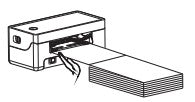
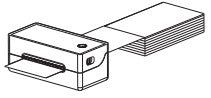
Please ensure your labels are properly loaded. The print side should be facing up.
|
Ensure your labels are "Direct Thermal" labels
|
|
Try to print out test page
|
Turn off the printer. Press the Feed Button and hold it until you turn on the printer, release. Printer will print a test page. If test print looks good, please try to print your label again.
|
Skipping labels or continuously feeding
|
(1)Change your label type and size are the main causes for printer skipping labels or continuously feeding
|
Disconnect the USB from your printer. Let your printer re-learn your label: press and hold the Feed Button 3s. Printer will move the label back and forth to learn the gap size and other properties of your label. Then change your label type, size on your computer, then re-connect the USB to the printer.
|
(2)The sensor which detects the paper, is covered by dust and that cause the detection is incorrect
|
Turn off printer. Open the Cover and use the alcohol pads to clean the sensor. (Any 70% Alcohol pad would work.) Allow 2-3 minutes for components to dry, then close the Cover and turn Label Printer back on.
|
I get horizontal label
instead of vertical label
|
--
|
For Mac
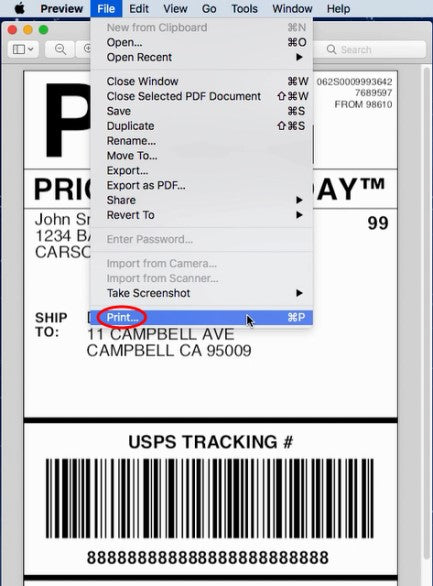
Open a desired file and printing->click "Show Details"-> select printing direction in "Orientation"
For Windows
Open "Devices and Printers"-> right click on "Label Printer"-> choose "Printer Preferences" -> select "90" under "Rotate"
|
Barcode is not printing clearly
|
(1)The source file wasn't created in the ideal quality
|
Print the sample label to test if your printer is working well.
|
(2)High print speed or density
|
Try reducing your print speed (try 3 in/sec) and your print density (try 3 as well) to see if you obtain a better result.
|
Paper jams or
label prints only half and stops
|
High print density
|
High print density causes the label to get too hot and get stuck to the Printhead. Different labels require different heating temperatures. Set your print speed to "4 in/sec" and density to "2" and try print again. If the label is too light, increase the density by 1.
|
Same label keeps printing
|
When printer doesn't believe a label was printed correctly, it will attempt to re-print it
|
Turn power switch off . This clears any pending print jobs. Let your printer re-learn your label: press and hold the Feed Button 3s. Printer will move the label back and forth to learn the gap size and other properties of your label.
|
Other Issues
|
Nothing happens when I try to print
|
Printer is connected to a new USB Port
|
Open your "Control Panel" -> "Printers and Devices" and note which Label Printer is "active".
It may be Label Printer, Label Printer (Copy 1), Label Printer (Copy 2), etc.
Then be sure to print to the same active printer name when printing.
|
Printer doesn’t turn on
|
Ensure power connection
|
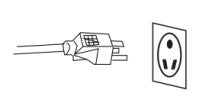
A. Ensure the wall plug has electricity by plugging another device into that same plug.
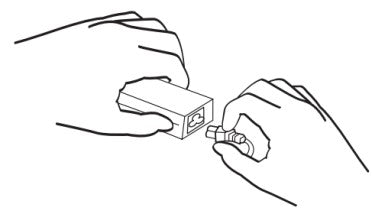
B. Follow the power cable to the adapter and check that the cable that goes to printer is plugged in all the way into the power adapter.
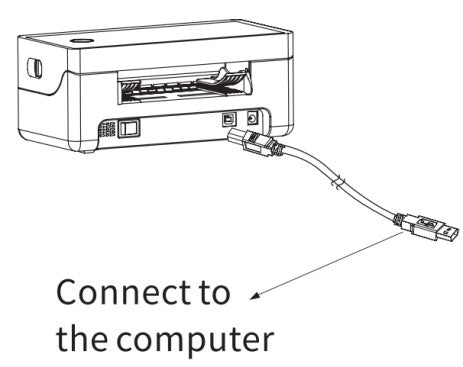
C. Ensure the plug that goes into printer is fully inserted.
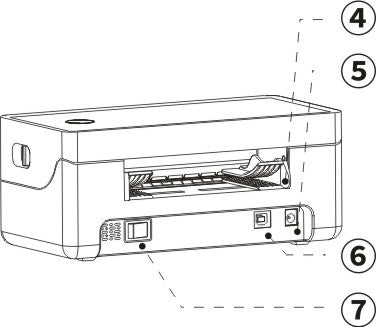
D. Turn the power switch off and on (I: On; O: Off). This switch is located on the back side of printer.
|
Printer makes loud noise when printing
|
Print speed being set too low or density set too high
|
Set your print speed to "5 in/sec" and density to "4" and print. If the label is too light, increase the density by 1.
|
Why are the label sizes in millimeters?
|
Windows is designed to use the metric system
|
To convert inches to millimeters on Google.
|


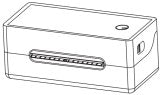
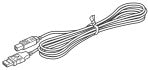
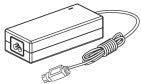
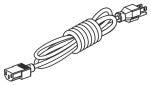



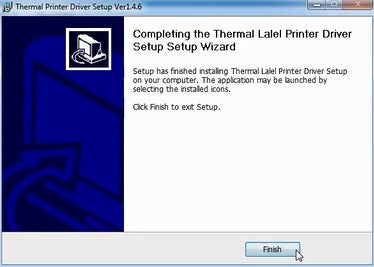

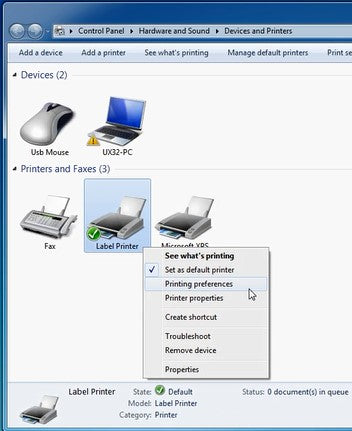
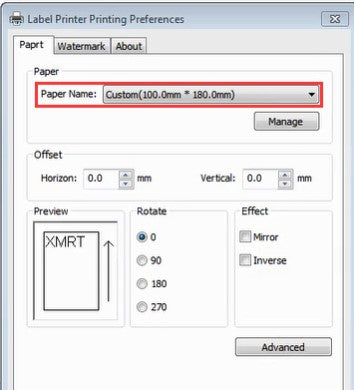
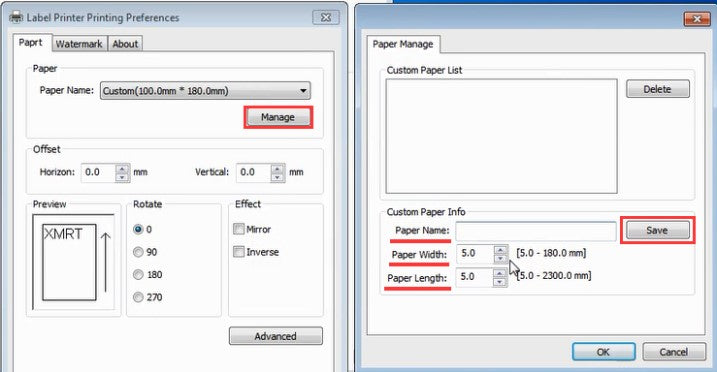
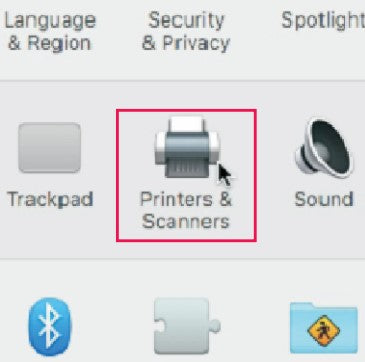
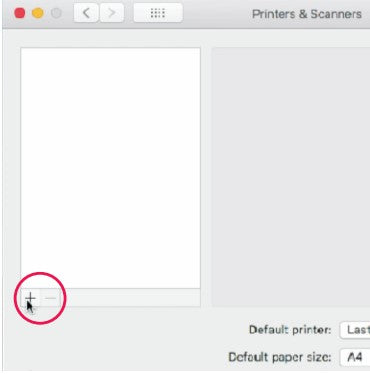
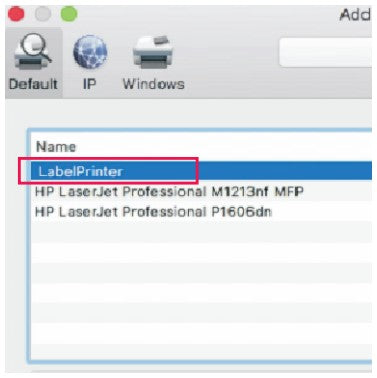
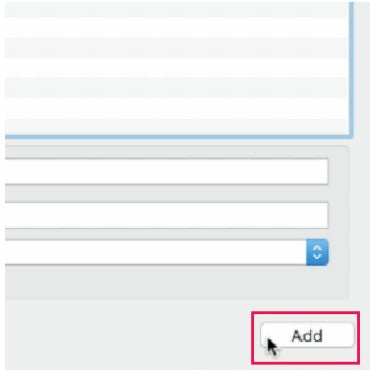
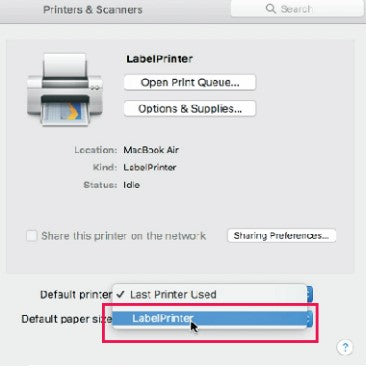
 ” and go to “System Preferences”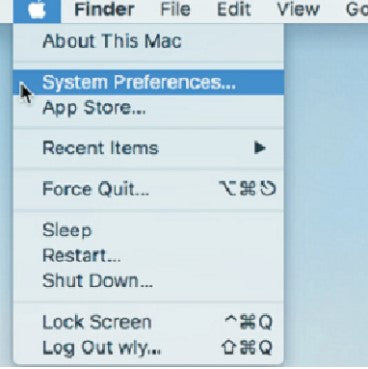


 CA
CA
 EU
EU