Phomemo TA81 Tattoo Stencil Printer - for Large Tattoos, Bluetooth Tattoo Printer Machine with Roll Transfer Paper, Compatible with Phone/Tablet/PC, Tattoo Supplies for Tattooing Artists & Studio, Standard Printer
This is most likely due to your print speed being set too low or density set too high. Please set your print speed to "5 in/sec" and density to "4" and print.
The exact number for darkness and print speed depends on the type of label you are using. We recommend starting with 4 and 4. If your print is too light, please increase the darkness setting number to get a darker print.
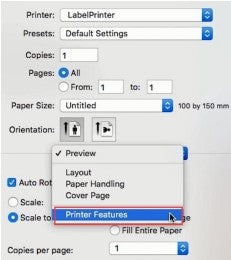
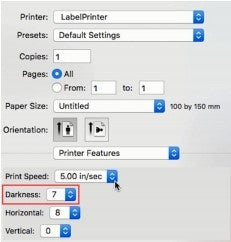
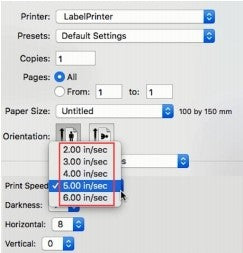
For Mac
①Select "Printer Features" in "Preview"
②Set theprintdensityin "Darkness"
③Set the print speed in "Print Speed"
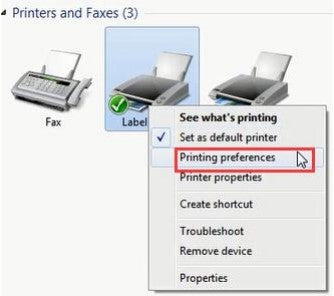
ForWindows
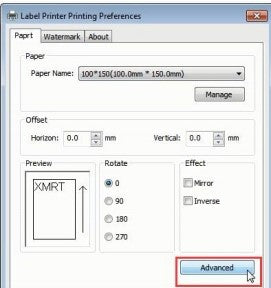
①Open “Devices and Printers” -> right click on “Label Printer” ->choose"Printer Preferences"->click "Advanced"
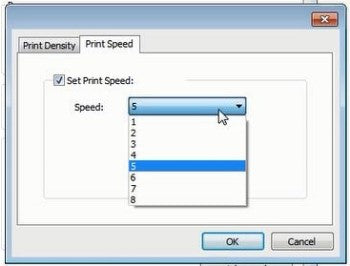
②Settheprint speedin"Speed"
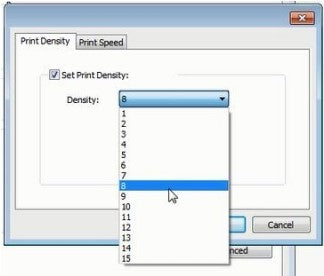
③Set the print density in "Density"
המדפסת משמיעה רעש חזק בעת ההדפסה
1.ברוב המקרים זה נובע מהגדרת מהירות הדפסה נמוכה מדי או צפיפות גבוהה מדי. הגדר/י את מהירות ההדפסה ל-'5 in/sec' ואת הצפיפות ל-'4' והדפס/י.
2.הערכים המדויקים של כהות ומהירות ההדפסה תלויים בסוג התווית שבה אתם משתמשים. מומלץ להתחיל ב-4 ו-4. אם ההדפסה בהירה מדי, הגדל/י את ערך הכהות כדי לקבל הדפסה כהה יותר.
עבור Mac:
① בחר/י 'Printer Features' ב-'Preview'.
② הגדר/י את צפיפות ההדפסה ב-'Darkness'.
③ הגדר/י את מהירות ההדפסה ב-'Print Speed'.
עבור Windows:
① פתח/י 'Devices and Printers' -> לחץ/י לחיצה ימנית על 'Label Printer' -> בחר/י 'Printer Preferences' -> לחץ/י 'Advanced'.
② הגדר/י את מהירות ההדפסה ב-'Speed'.
③ הגדר/י את צפיפות ההדפסה ב-'Density'.





 US
US
 EU
EU